
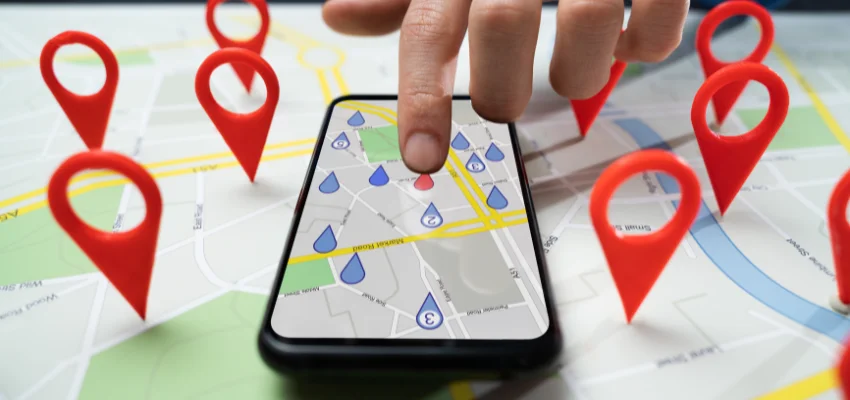
Searching for an exact location on a map isn’t always easy. Many places don't have clear addresses, especially parking spots, meeting points, or places in remote areas. In such a scenario, Google Maps offers an easy solution wherein one can drop a pin in Google Maps to mark the correct spot one is looking for.
Devices like a phone or computer are used; one can drop a pin, which helps us to mark, share, and reach an exact location. Thus, it guides you to walk through what a dropped pin means. When it’s functional, one can add on both mobile and desktop Google Maps.
Meaning of Dropped Pin in Google Maps?
In Google Maps, a dropped pin allows you to mark places on the map. Instead of plugin an address or business entity name, one can easily tap or click on the desired location. This is how the exact coordinates are being displayed by the pins, making it simpler to look, find, or search the location, even if the street or building numbers are not clear.
A dropped pin allows you to:
- Mark a place that does not appear in search results
- Save a location for later use
- Share an exact spot with others
- Get directions from or to that point
💡Tip: For better accuracy, one can first search on Google Maps to find the general location area before dropping the pin
When can one use Pin Dropped Location?
Using a pin dropped location makes sense in many real-life situations. You should drop a pin when accuracy matters more than an address.
Common situations include:
- Getting someone at a certain place, e.g., a park gate or a roadside.
- Highlighting parking spots in new places.
- Releasing your precise location to the delivery partners or drivers.
- Storing travel destinations such as viewpoints, beaches, or hiking trail start points.
- Placing locations in rural or low-density areas.
If you want to pin my location or guide someone directly to a spot without confusion, dropping a pin gives the most reliable result.
How to Drop A Pin in Google Maps on a Mobile?
On both Android and iPhone, dropping a pin in Google Maps is a piece of cake. And if you don’t know how to do this, then see the steps which are given below.
Steps to Drop a Pin on Mobile:
1. Open the Google Maps app
2. Zoom in on the desired area
3. Tap and hold on the exact location
4. Release when the pin appears
5. Save or label the pinned location
Once the pin drops, Google Maps displays location details at the bottom of the screen.
What You Can Do After Dropping a Pin?
After you pin a location on the map, you can follow these steps:
- Save the pinned location to your Google account.
- Share the location pin with contacts via messaging apps.
- Get directions to or from the selected location.
- Add a label to the location for easy identification.
This method works best when you are on the move and want to pin locations on a map quickly.
How to Drop a Pin in Google Maps on a Computer?
Do you use Google Maps on the computer? Don’t know how to drop a pin on the computer? It is as easy as taking a bite of cake. You just need to put your cursor on the location through the mouse and drop a pin on the Google map. Here are the proper steps:
- Open Google Maps in your browser.
- Zoom in on the place you want.
- Click on the exact spot.
- The pin will appear on the map.
A small information box opens, showing the dropped location and its coordinates.
Actions Available After Dropping a Pin:
After placing a pin on the desktop, you can:
- Copy the location’s coordinates.
- Share the map link with others.
- Save the dropped pin to your Google account for mobile responsiveness across devices.
- Get directions from or to the pinned spot.
Desktop works well when you want precise control while planning routes or saving multiple locations.
Common Issues When You Drop A Pin in Google Maps
Sometimes, users face small issues when trying to drop a pin. These problems are easy to fix with a few adjustments.
Common issues include:
Pin is in the improper location: Zoom in further before dropping the pin.
Mobile GPS inaccuracy: Enable the location services and refresh the map.
Internet connection problems: Ensure a stable connection before placing the pin.
Pin not saving: Sign in to your Google account to save dropped pins.
Final Thoughts
Dropping a pin on Google Maps is an easy task. Realising how to drop a pin changes how you utilize a map. Rather than adjusting to what the map displays, you decide on the right spot that matters to you. That could be a meeting point, a parking place, a trail start, or a place you don’t want to forget. Addresses can be missing or misleading, but a pin always points to one exact location.
Once you start saving and sharing pin-dropped locations, you stop explaining directions again and again. The map does the explaining for you. Used properly, this simple feature helps you stay organized, avoid confusion, and reach places without second-guessing. It’s a small habit that makes everyday navigation easier.
📞 Move beyond standard digital marketing. Get in touch and transform your online presence today.
Frequently Asked Questions (FAQs)
Follow these steps to drop a pin on Google maps
- Open Google Maps on the web
- Zoom in to find the exact location
- Left-click on the spot to drop a pin
- Use the details panel to save, share, or get directions
Here is the proper step to delete or edit the dropped pins
- Open Google Maps and go to your saved pins
- Select the pin you want to edit
- Click Edit in the pop-up
- Update the pin details (name, location, etc.)
- Click Save to apply the changes
To mark a spot, open Google Maps on your phone or computer and go to the area you need. Tap or click on the place, and the pin shows up. You can save it or share it if needed.